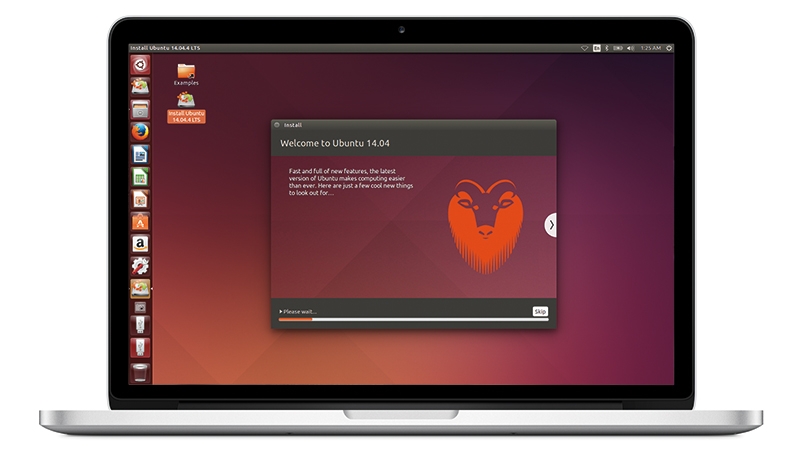
Are you tired of the limitations of macOS and curious about exploring the flexibility and power of Linux on your MacBook? You’re not alone.
Many Mac users are discovering the advantages of having Linux at their fingertips, from enhanced customization options to the ability to run software that’s not available on macOS. If you’re ready to breathe new life into your MacBook, you might be wondering where to start.
Don’t worry; we’ve got you covered. This guide will walk you through each step of installing Linux on your MacBook, making it as seamless as possible. Imagine having a system tailored to your needs, unlocking a world of possibilities right at your fingertips. Curious to see how it’s done? Let’s dive in and transform your MacBook experience together.
Preparing Your Macbook
It’s important to keep your data safe. Use a USB drive or an external hard drive. Copy your important files there. This way, you won’t lose your photos or documents. It’s a smart step before making big changes.
Linux needs special computer parts to run well. Check your Macbook’s processor and RAM. Make sure your Macbook has at least 2GB of RAM. Also, ensure your Macbook has enough disk space. At least 20GB is recommended. This helps Linux run smoothly.
Choosing The Right Linux Distribution
Selecting the right Linux for your Mac is important. Ubuntu is very popular. It is user-friendly and easy to install. Fedora offers the latest features and updates. Debian is known for stability and security. Elementary OS looks like macOS and is simple to use.
Think about what you need. Ease of use can save time. Hardware support is crucial for Mac compatibility. Community support helps when you face issues. Software availability ensures you have the apps you need. Lastly, check security features for protection.
Creating A Bootable Usb Drive
Downloading Linux ISOis the first step. Choose your Linux version. Visit the official website. Find the download section. Click on the ISO file link. The file will start downloading. Wait for the download to finish. Check the download folder. Make sure the ISO file is there.
Using Etcher for USB Creationis easy. First, open Etcher. Insert your USB drive into the Macbook. Next, select the downloaded ISO file. Etcher will show it on the screen. Choose your USB drive from the list. Click the “Flash” button. Etcher will start creating the bootable USB. Wait for the process to complete. Your USB drive is ready.

Configuring Macbook For Installation
Secure Boot keeps your Macbook safe but blocks Linux. You need to disable Secure Bootfirst. Restart your Macbook and hold the Option key. Open “Startup Security Utility.” Find the Secure Boot option. Choose “No Security.” This step is crucial for Linux installation.
Adjusting boot order helps your Macbook start from USB. Restart your Macbook again. Hold the Option keyonce more. You will see a list of drives. Select the USB drive with Linux. Make sure the USB appears first. This ensures Linux starts properly.
Installing Linux On Macbook
Start by creating a bootable USB drivewith Linux. Use a tool like Rufusor Etcher. Insert the USB into your MacBook. Restart the MacBook and press Option keyduring startup. This opens a menu. Choose the USB drive to boot Linux.
Open the Disk Utilityon your Mac. Select the internal hard drive. Click on Partition. Create a new partition for Linux. Ensure it has enough space. Format the partition as ext4. Apply changes and close the utility. Your Mac is now ready for Linux installation.
Post-installation Setup
Setting up Linux on a Macbook involves configuring essential features for optimal performance. Adjust display settings, ensure hardware compatibility, and customize the user environment for a smooth experience. Optimize security protocols to safeguard data while enhancing system efficiency.
Installing Necessary Drivers
Make sure your Macbook runs smoothly with Linux. First, install necessary drivers for your hardware. Open the terminal and type sudo apt-get updateto refresh package lists. Then, type sudo apt-get install [driver-name]. Replace [driver-name] with the specific driver you need. Check online for driver names. This ensures your components work well. Sound, Wi-Fi, and graphics may need special drivers. Follow the instructions for each. Always keep drivers updated.
Updating The System
Keep your system up-to-date for better performance. Open the terminal again. Type sudo apt-get update. This updates your package list. Next, type sudo apt-get upgrade. This installs the latest versions of packages. Regular updates fix bugs and improve security. Set your system to update automatically. This helps you avoid problems. Stay informed about new updates. This keeps your Macbook running smoothly.
Troubleshooting Common Issues
Installing Linux on a MacBook involves steps like creating a bootable USB drive and adjusting boot settings. Ensure compatibility with your Mac model for a smooth installation process. Address common issues such as Wi-Fi connectivity and trackpad sensitivity by checking hardware support and updating drivers.
Fixing Boot Problems
Macbooks may face boot issues with Linux. First, check if your bootloader is correctly installed. Errors can occur during the installation. Reinstalling the bootloader might solve the issue. Secure Boot settings can also cause problems. Disabling Secure Boot may help. Ensure your boot partition is correctly formatted. If the partition is wrong, Linux might not boot.
Resolving Hardware Compatibility
Some Macbook hardware might not work with Linux. Wi-Fi adapters often face issues. Installing the right driver can fix this. Sound cards may need special drivers too. Check if your touchpad works well. Adjust settings if it’s not responsive. Screen resolution might be off. Use display settings to adjust it.

Frequently Asked Questions
Can I Dual Boot Linux And Macos On Macbook?
Yes, you can dual boot Linux alongside macOS on a Macbook. Use tools like Boot Camp or rEFInd to manage booting. Ensure your Macbook has sufficient storage and compatible hardware. Follow installation guides carefully to avoid overwriting important data.
Which Linux Distro Is Best For Macbook?
Ubuntu is often recommended for Macbooks due to its user-friendly interface. It offers extensive support and compatibility with Mac hardware. Fedora and Debian are also good choices, depending on your preferences for stability and updates.
Do I Need To Partition My Macbook?
Yes, partitioning is essential for installing Linux on your Macbook. Create a separate partition for Linux using Disk Utility. This allows Linux to coexist with macOS without interfering with existing data.
How Do I Install Linux Drivers On Macbook?
Linux drivers for Macbook are usually available in the Linux kernel. Most hardware will work out-of-the-box. For specific components, check the distro’s documentation or forums for driver installation steps.
Conclusion
Installing Linux on a MacBook is easier than it seems. Follow the steps carefully, and your MacBook transforms into a versatile machine. Linux offers a world of possibilities for tech enthusiasts. Enjoy the freedom and customization it provides. Remember to back up your data before starting.
This ensures your important files stay safe. Patience and attention to detail are key. Experiment with different Linux distributions if desired. Each has unique features and benefits. Now, explore and enjoy your new operating system. Dive into learning, and make the most of your Linux experience.
Read More:
- Noise‑Cancelling Headphones Comparison: Ultimate Guide
- Time Management Apps Compared: Boost Your Productivity
- Ai Chip Market Growth 2025: Unveiling Future Trends
- Best Cloud Storage Services 2025: Top Picks Revealed
- Essential Tech Gadgets for Digital Nomads: Must-Have Tools
- Vr Hardware Cost Analysis: Unlocking Budget Insights
- Top Productivity Tools for Remote Teams: Boost Efficiency
- Ergonomic Home Office Setup Tips: Boost Comfort & Productivity